
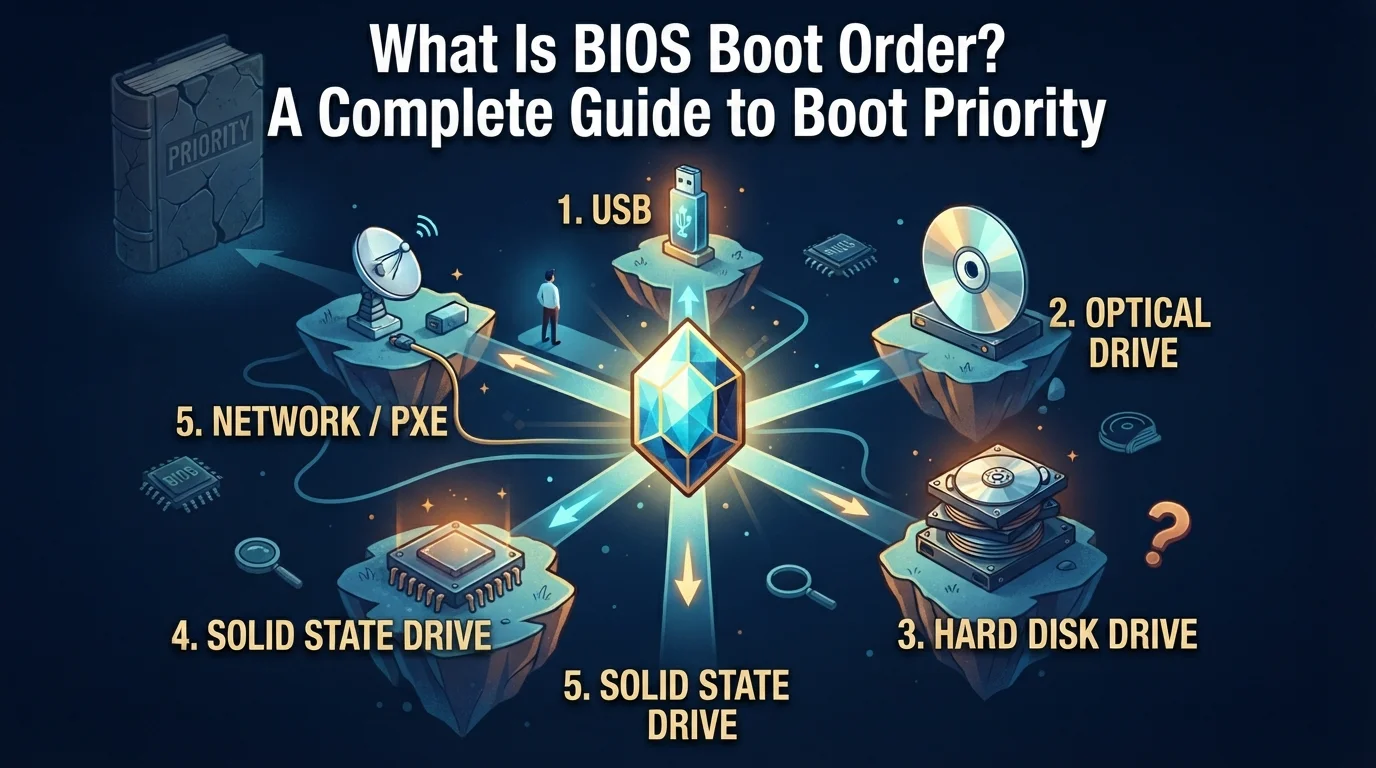
What Is BIOS Boot Order? A Complete Guide to Boot Priority
When a computer starts, it does not randomly choose where to load Windows or another operating system from. Before the operating system begins, the computer checks its available storage devices and other bootable hardware according to a specific priority. This priority is known as the BIOS boot order.
Understanding what is bios boot order can be useful when installing Windows, starting a computer from a USB drive, troubleshooting startup problems, or fixing situations where the PC keeps trying to boot from the wrong device. Although changing the boot order is usually simple, choosing the wrong option can prevent the computer from starting normally.
This guide explains how boot order works, why it matters, what the different options mean, and how to change it safely.
How the Boot Process Works?
When you press the power button, the computer performs several steps before showing the Windows desktop. The BIOS or modern UEFI firmware starts by checking the system hardware and determining which device should be used for startup.
The process generally looks like this:
- The computer powers on.
- BIOS or UEFI firmware initializes important hardware.
- The firmware checks the configured boot priority.
- It looks for a valid bootable device.
- The selected device loads its boot information.
- Windows, Linux, or another operating system begins loading.
This is why the boot order matters. If the computer checks the wrong device first, it may display an error, open an installation screen, or simply fail to load the operating system.
What Is BIOS Boot Order?
So, what is bios boot order in practical terms? It is the priority assigned to different devices that your computer can use to start the operating system.
A typical system might have several possible boot sources, including:
- Internal SSD
- Internal hard drive
- USB flash drive
- DVD or optical drive
- Network boot
- External storage devices
The firmware checks these options according to their position in the boot list. If the first device contains valid boot information, the computer normally continues with that device rather than moving to the next one.
For example, suppose your computer has this order:
USB Drive → SSD → Network
If a bootable USB is connected, the computer may attempt to start from it. If there is no usable boot information on the USB, the firmware can move to the SSD and attempt to start Windows from there.
BIOS vs UEFI: Does Boot Order Work the Same Way?
You may see the word BIOS even though your computer actually uses UEFI firmware. Modern computers commonly use UEFI, which replaced traditional BIOS on most newer systems.
The names and menus can be different, but the basic concept remains similar.
Traditional BIOS menus may show entries such as:
- Hard Disk
- USB Storage
- CD/DVD
- Network
UEFI systems can show more specific entries, such as:
- Windows Boot Manager
- UEFI USB Device
- NVMe SSD
- UEFI Network
- Internal Storage
Windows Boot Manager is particularly important on UEFI systems because it is normally the entry responsible for starting an installed Windows operating system.
Therefore, when someone asks what is bios boot order, they may actually be referring to the boot priority inside either legacy BIOS or modern UEFI settings.
Common Devices Found in the Boot List
Different computers can display different boot options. However, several entries appear frequently.
Internal SSD or Hard Drive
The internal storage drive is usually where Windows or another operating system is installed. Once the computer is configured normally, this is often the device you want to use for everyday startup.
On a UEFI Windows installation, you may see Windows Boot Manager instead of simply seeing the name of the SSD.
USB Storage
A USB flash drive can contain a bootable Windows installer, Linux environment, recovery tools, or other startup software. When the USB drive is placed higher in the boot priority, the computer checks it before moving on to the internal storage.
USB booting is especially useful when you need to install a new operating system, repair Windows, access recovery tools, or troubleshoot a computer that cannot start normally. Once the task is complete, you can remove the USB and let the computer return to its normal internal drive.
CD or DVD Drive
Older desktop computers and laptops may include an optical drive that can read bootable CDs or DVDs. If a bootable disc is inserted and the optical drive has a higher position in the boot order, the computer can attempt to start from that disc instead of the internal storage.
This option was commonly used for operating system installations and recovery tools before USB drives became more convenient. Modern laptops often do not include optical drives, so CD and DVD booting is much less common than it was on older computers.
Network Boot
Network boot allows a computer to start using files or operating system resources provided through a network connection instead of relying entirely on local storage. Technologies such as PXE (Preboot Execution Environment) are commonly used for this purpose.
This type of booting is more common in offices, schools, data centers, and other managed environments where administrators need to install or maintain software across many computers. For a typical home computer, network boot usually isn’t needed unless the system has been specifically configured to use it.
Why Would You Need to Change the Boot Order?
Most users never need to touch the boot order after installing their operating system. However, certain situations require changing it temporarily.
Common reasons include:
- Installing Windows: If you’re installing Windows from a bootable USB, the computer needs to recognize the USB as a startup source. You can either temporarily select the USB from the boot menu or change the permanent boot priority.
- Running Recovery Tools: A recovery USB can be used to troubleshoot startup problems, repair system files, restore a backup, or perform other maintenance tasks.
- Installing Linux: When installing Linux from a USB drive, the system needs to start from the installation media before the existing operating system.
- Troubleshooting Startup Problems: If the computer cannot find the operating system on its normal drive, checking the boot configuration can help determine whether the firmware is attempting to use the correct device.
What Happens When the Wrong Device Comes First?
The effect depends on what is connected to the computer.
If a bootable USB is connected and placed before the internal drive, the computer may start the installer or recovery environment instead of Windows.
If the USB contains no usable boot information, the firmware may skip it and continue searching. However, some systems may display an error instead.
A wrong boot priority can result in messages such as:
- No bootable device
- Operating system not found
- Boot device not found
- Missing operating system
- Insert boot media
These messages do not always mean the boot order is the cause. A damaged boot configuration, disconnected drive, failed SSD, or corrupted operating system can produce similar symptoms.
How to Check the Current Boot Order?
The exact steps depend on your computer manufacturer and firmware interface, but the general process is straightforward.
- Shut down or restart the computer.
- Turn it on again.
- Press the appropriate BIOS/UEFI setup key during startup.
- Open the Boot, Startup, or Boot Configuration section.
- Locate the current boot priority.
- Review the listed devices.
Common keys used to enter firmware settings include:
- F2
- Delete
- Esc
- F10
- F12
The correct key varies between manufacturers and models.
Some systems also provide a one-time boot menu. This is often preferable when you only need to boot from a USB once because it does not permanently change the configured priority.
How to Change BIOS Boot Order?
Once you enter the BIOS or UEFI settings, look for a section named Boot, Boot Order, Boot Priority, or something similar.
You may see a list such as:
- Windows Boot Manager
- USB Storage Device
- Network Boot
- DVD Drive
You can move the desired device higher or lower using the instructions shown on the screen.
After making the change, you normally need to save the settings before exiting. Many firmware interfaces use a key such as F10 for saving and exiting, although this varies.
After restarting, the computer should follow the new priority.
Permanent Boot Order vs One-Time Boot Menu
There are two common ways to choose a startup device.
Permanent Boot Order
This changes the default priority until you change it again.
For example, you could place the internal SSD first and USB second. The computer will normally start from the SSD whenever a USB is not being used.
One-Time Boot Selection
A one-time boot menu allows you to choose another device for a single startup.
This is useful when you want to install Windows from a USB but do not want to permanently change the computer’s normal startup configuration.
For occasional troubleshooting or installation work, a one-time selection can be more convenient.
What Is the Best Boot Order for a Normal PC?
There is no universal boot order that applies to every computer, but a typical Windows computer should prioritize its normal internal boot entry.
For a modern UEFI Windows installation, you may commonly see:
- Windows Boot Manager
- Internal storage
- USB storage
- Network boot
The exact arrangement can vary depending on the hardware and how the operating system was installed.
If you frequently use bootable USB drives, keeping USB available as a secondary option is usually convenient. If you rarely use external boot media, there is generally no reason to prioritize it above the normal Windows boot entry.
Important Things to Remember Before Changing It
Changing boot priority is normally safe, but it is better to make changes carefully.
Keep these points in mind:
- Remember the original boot configuration before changing anything.
- Do not change unrelated BIOS settings without knowing their purpose.
- Make sure your USB installer or recovery drive is actually bootable.
- Check whether your system uses UEFI or Legacy/CSM mode when troubleshooting installation issues.
- Remove unnecessary USB devices if they are interfering with startup.
- Save changes before exiting if you intentionally changed the boot order.
- If Windows already starts normally, avoid changing the settings without a specific reason.
Also, do not assume every startup problem is caused by boot order. Hardware failures and corrupted boot files can create very similar symptoms.
Final Thoughts
The boot priority is one of the basic settings responsible for determining where a computer looks for startup information. Once you understand what is bios boot order, tasks such as installing Windows from a USB, using recovery media, or troubleshooting a startup problem become much easier to understand.
For everyday use, the computer will normally start through its internal Windows installation or Windows Boot Manager. When you need external installation or recovery media, you can temporarily choose another device through the boot menu or adjust the permanent priority.
The most important thing is to make changes for a specific purpose and avoid modifying unrelated firmware settings. With that approach, boot order becomes a useful troubleshooting and installation tool rather than a confusing BIOS option.